
Help · Guides
Resetting your password
7 steps · about 1 minute
Click "Forgot password?" on the sign-in page
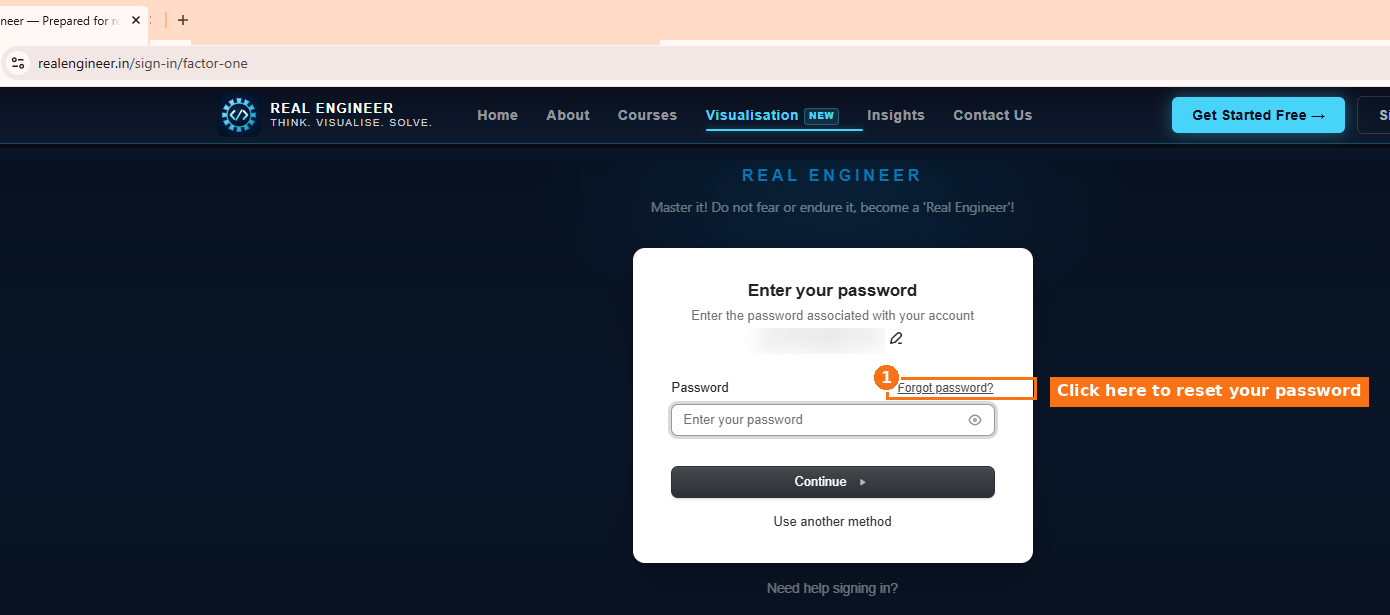
The link sits just under the password field.
Pick how you want to get back in
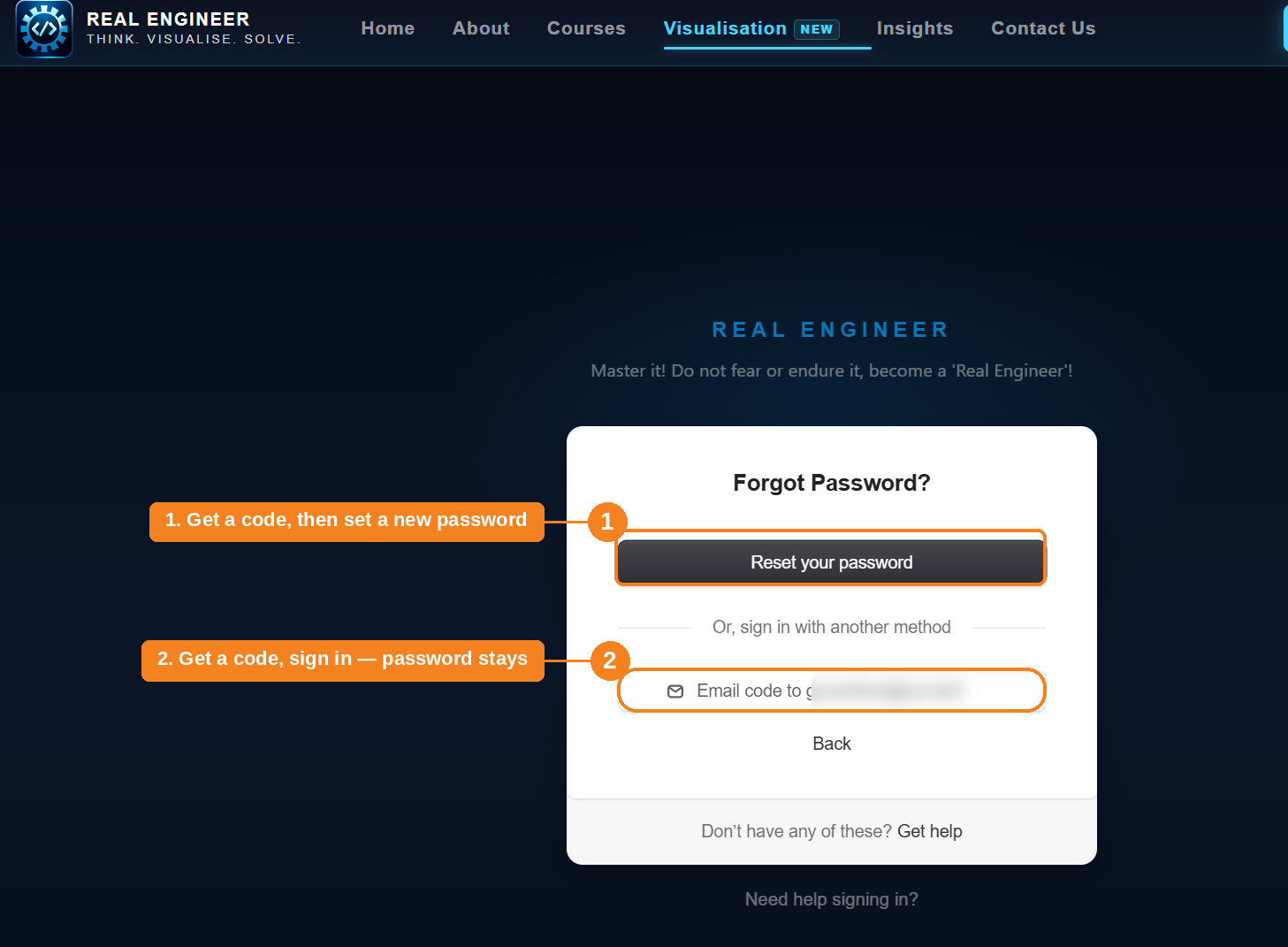
There are two ways in from here. "Reset your password" (1) sends you a code and then asks you to set a brand new password. "Email code to..." (2) sends you a code that just signs you in — your existing password keeps working. Pick whichever matches what you actually want.
Path 1 — Check your email for the reset code
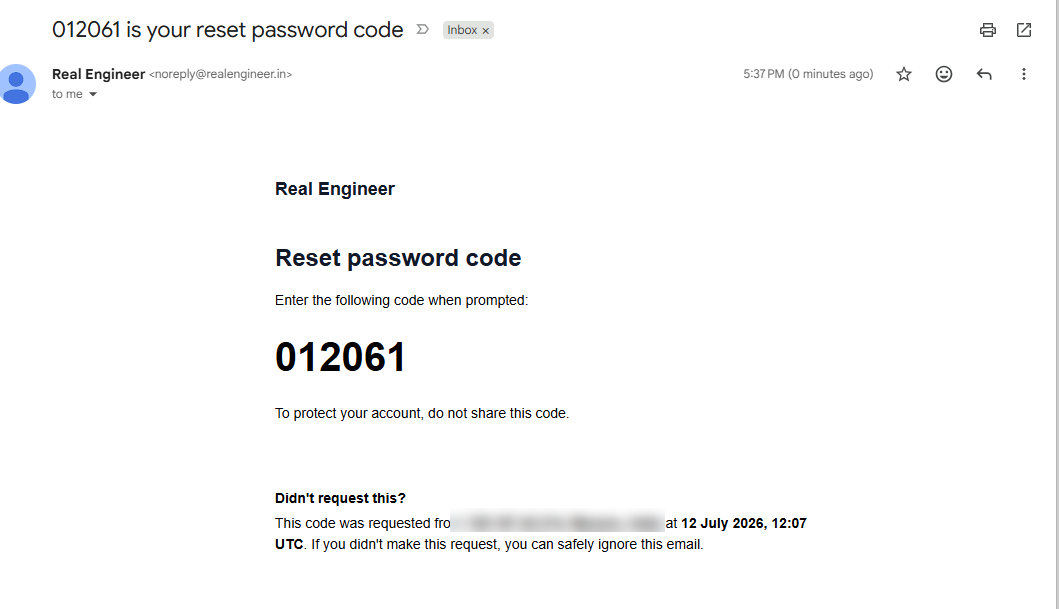
Sent from noreply@realengineer.in with the subject line "[code] is your reset password code" — check spam if it doesn't arrive in a couple minutes. The 6 digits in the email are what you'll type into the next screen.
Path 1 — Enter the code to reset your password
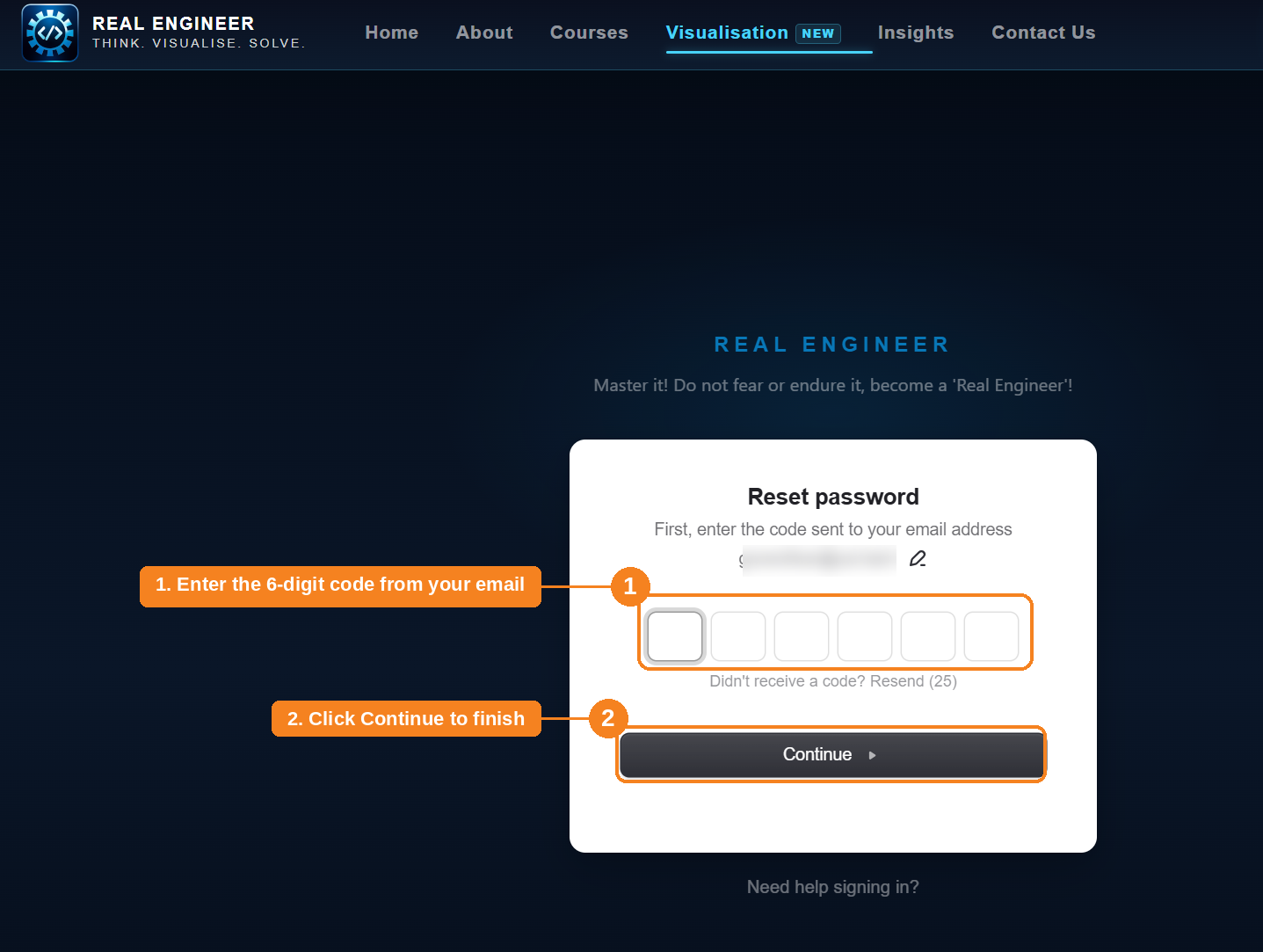
Enter the 6 digits from the email into the boxes, then click Continue.
Path 1 — Set a new password
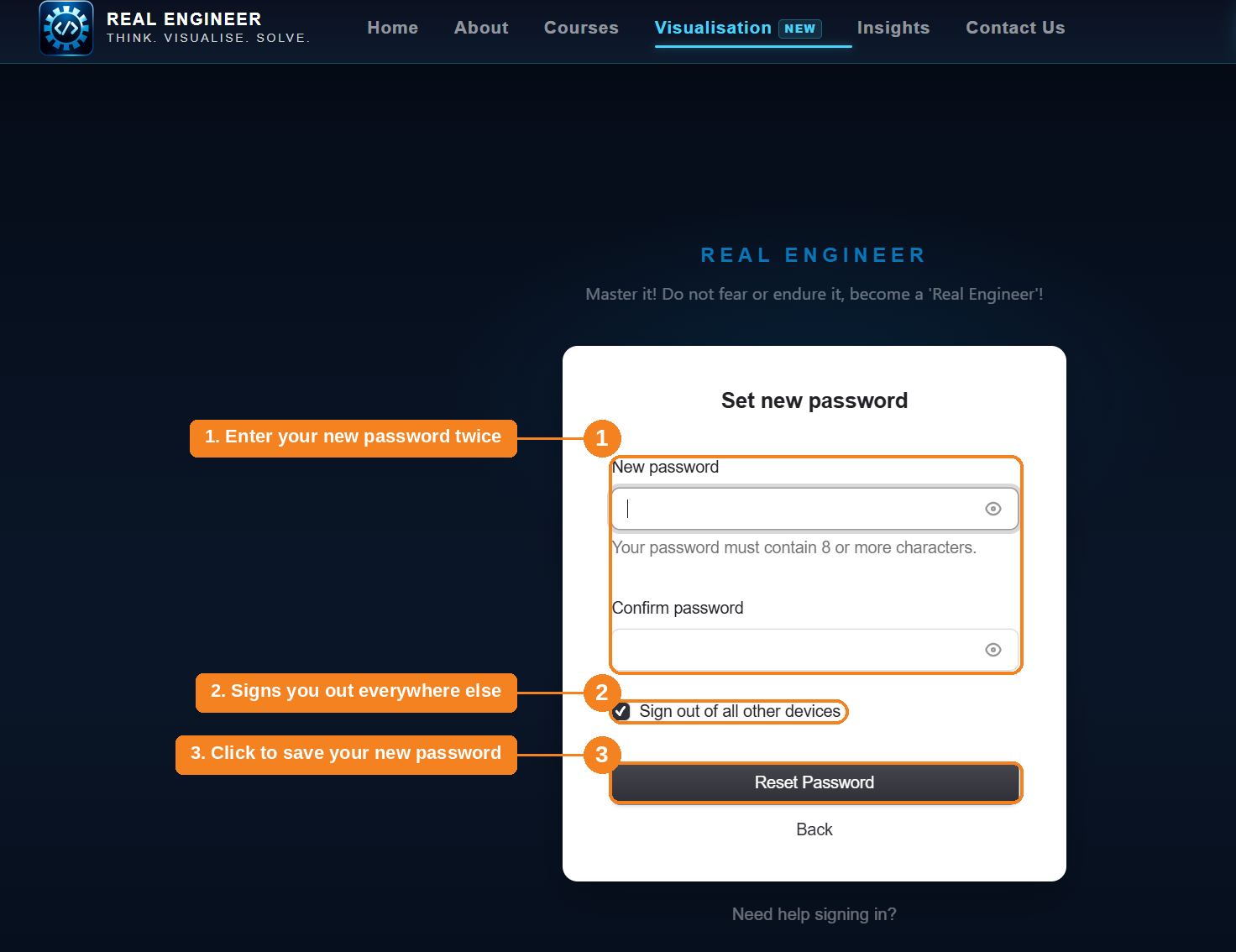
Once this is saved, your old password no longer works — use the new one from now on.
Path 2 — Check your email for the sign-in code
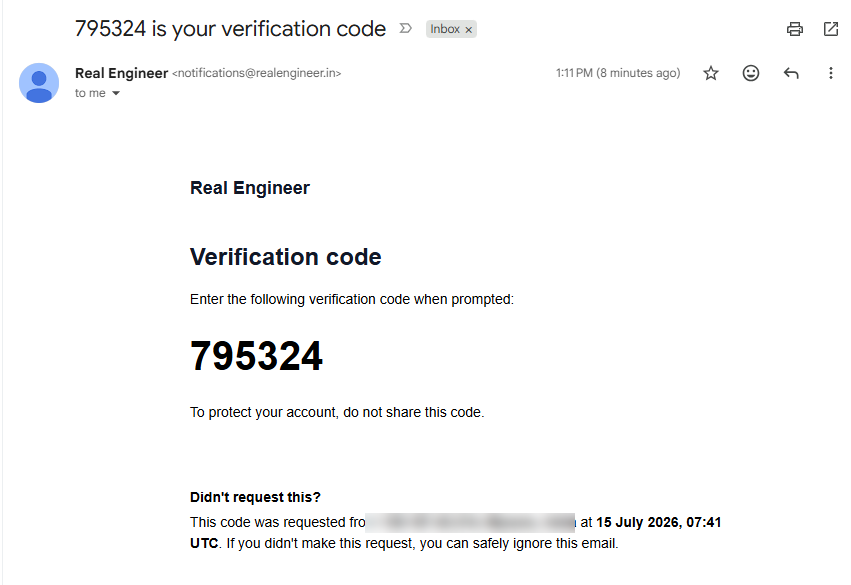
Sent from notifications@realengineer.in with the subject line "[code] is your verification code" — a different email than the reset-password one, since this path just signs you in.
Path 2 — Enter the code to sign in
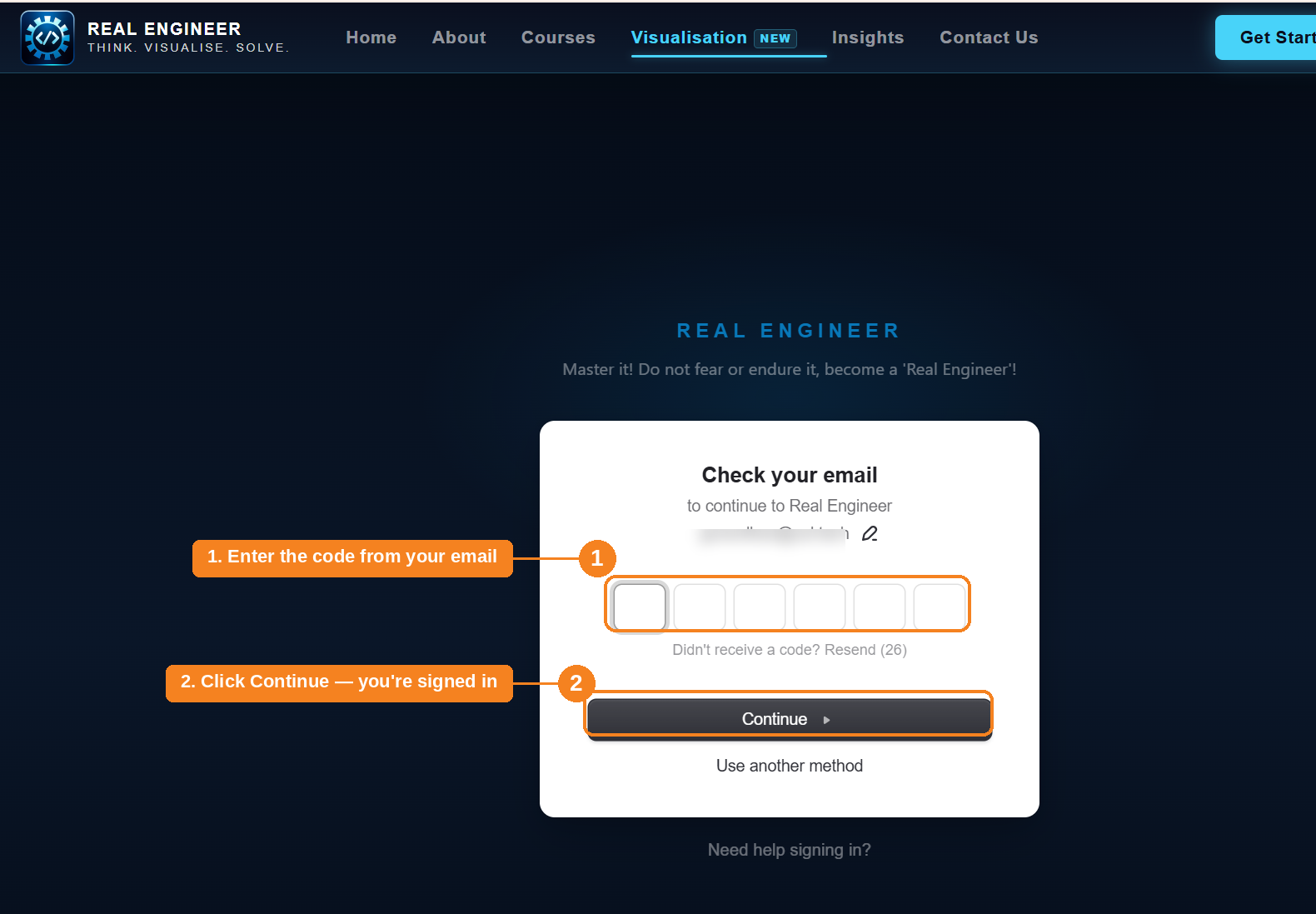
Enter the 6 digits from the email and click Continue — you're logged in immediately. Your password is unchanged, so if you remember it later, it'll still work.